How to Install Skript on a Minecraft Server
Installing Skript takes about ten minutes once you know what your server needs. This guide checks your server software and Java version, downloads the right file from the official source, uploads it on a home server or a hosting panel, and finishes with a working test command so you know everything is in place.
 SkriptPlugin Editorial TeamIndependent Skript guides
Updated Published 4 min read
SkriptPlugin Editorial TeamIndependent Skript guides
Updated Published 4 min read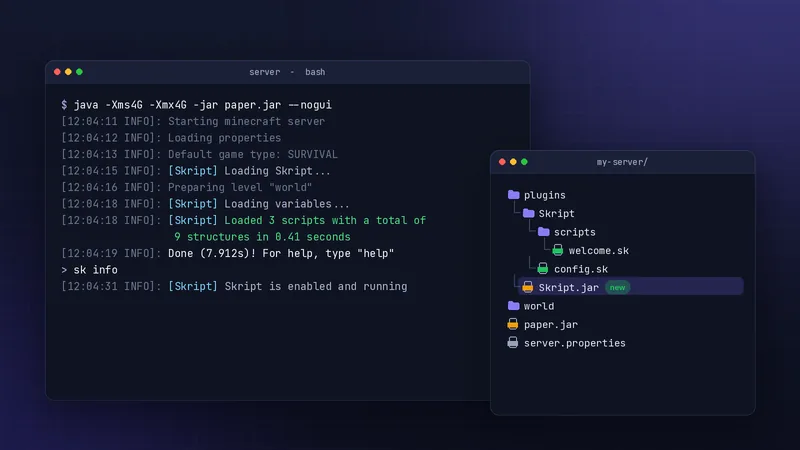
Before you start: check your server
Most failed installs come from the server, not from Skript. Two quick checks save a lot of guessing later.
Confirm you are running Paper
Current Skript releases require Paper. Skript 2.16.2 supports Paper 1.21.4 through 26.2. Run version in the console; the first line names the server software. If it says Spigot or CraftBukkit, switch to Paper first. Paper is a drop-in replacement for most servers, so your worlds and plugins usually carry over.
Check your Java version
Paper 1.21.x needs Java 21, and Paper 26.x needs Java 25. On a hosting panel the Java version is normally a dropdown in the startup or settings tab. On your own machine, run this before starting the server:
$ java -versionShared hosts
Some hosts pin an older Java image by default. If the server crashes on start after a Minecraft update, the Java setting is the first thing to check.
Download the right Skript file
Pick the release for your Minecraft version
Open the official releases page and read the "Supports" line at the top of each release. Download the newest release that lists your Paper version. Each release has a single jar under Assets, named like Skript-2.16.2.jar. You do not need the source code archives.
Avoid re-upload sites
Skript is free and published by the SkriptLang team. Sites that re-host the jar add nothing and can serve old or modified files. Our download page explains how to recognise the official source.
Upload Skript to your server
Always stop the server cleanly with stop before adding or replacing plugins.
On a self-hosted server
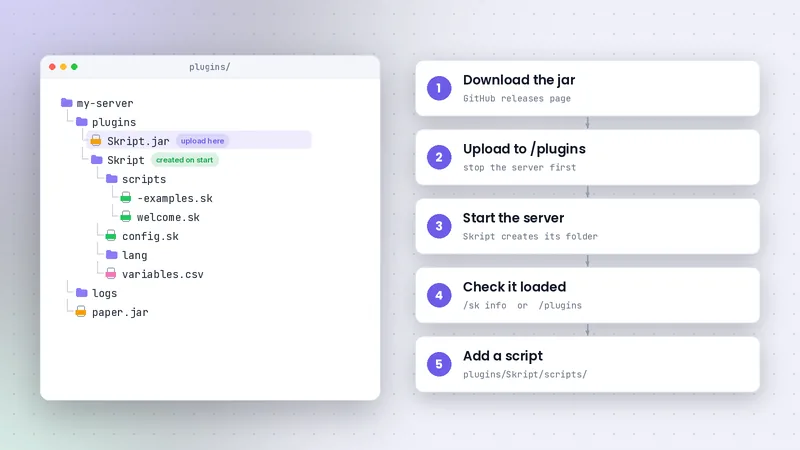
Copy the jar into the plugins folder that sits next to your Paper jar. If an older Skript jar is already there, delete it first. Two Skript jars in one folder is a common cause of strange errors.
On a hosting panel
Open the panel's file manager, go to plugins/, and upload the jar. Large panels also offer SFTP, which is faster for many files. Some hosts have a one-click plugin installer; it is fine to use, but check afterwards that the version matches the one you wanted.
First start and verification
What Skript creates on first run
Start the server. Skript creates plugins/Skript/ containing config.sk, a lang folder, a scripts folder with example files, and later a variables.csv file where saved variables live. The example scripts start with a hyphen, so they are disabled until you rename them.
Checking with /sk info
Run /sk info in game or sk info in the console. You should see the installed version and links to the documentation. /plugins should also list Skript in green. If it is red or missing, read the startup log from the top and see our troubleshooting hub.
Write and load your first script
Create hello.sk
Create a file called hello.sk inside plugins/Skript/scripts/ with any plain-text editor. Use four spaces for indentation.
command /hello:
    permission: demo.hello
    trigger:
        send "&aSkript is installed and working, %player%!" to player
Reload safely
Run /sk reload hello. Skript reports either a success message or the exact line that failed. Then type /hello in game. Avoid the server-wide /reload command; Paper warns against it because it can leave plugins in a broken state. For new plugin jars, restart.
You are done
If /hello answers, Skript is installed correctly. Next, try the command guide or browse beginner examples.
Updating Skript later
Read the changelog first
Minor updates usually fix bugs, while feature releases can rename or remove syntax. Read the release notes and check that each addon you use supports the new version before updating.
Swap the jar during a restart
Back up plugins/Skript/, stop the server, replace the jar, and start again. Watch the console for parse errors in your scripts and fix them before players notice.
Frequently asked questions
Can I install Skript on Spigot?
Not with current releases. Skript 2.16.2 requires Paper, so the practical route is switching your server to Paper, which runs most Spigot plugins unchanged.
Do I need to restart after adding Skript?
Yes. New plugin jars should always be added with a full stop and start. After that, scripts themselves can be reloaded with /sk reload without restarting.
Where are the example scripts?
In plugins/Skript/scripts/. They start with a hyphen so they stay disabled. Rename a file to remove the hyphen, then reload it to try it.
Written and checked by the SkriptPlugin Editorial Team against Skript 2.16.2 on Paper. Syntax can change between releases, so confirm details in the official documentation for your version. Read our editorial policy.